
How to Verify and Reapply After an IDR Calculation Error
A step-by-step verification workflow for borrowers who received the Education Department's July 2026 IDR error notice: confirm application status on StudentAid.gov, capture documentation, reapply with correct income data, and create a paper trail to protect payment progress and forgiveness eligibility.
- Applicable role
- pro se litigant
- Workflow stage
- post-filing
If the Education Department’s July 2026 IDR error notice landed in your inbox, the problem is not only that your payment may have been calculated incorrectly. The more dangerous gap is that the notice tells you to reapply without giving you a clean way to prove what happened to the application you already submitted.
Forbes reported that the notice told borrowers the Department had made a payment calculation error and that they needed to reapply for an income-driven repayment plan.[1] Business Insider reported that the Department confirmed about 6,000 borrowers were affected, while noting that the total scope could be larger because the Department did not specify whether that figure represented the full universe of cases.[2] The College Investor added the practical problem borrowers now have to solve: a canceled IDR application may not clearly announce itself, and the borrower may only be able to confirm whether an application is pending by checking StudentAid.gov’s “My Activity” section.[3]
That makes this less of a normal reapplication task and more of a verification problem. Before you submit anything new, you need to preserve what the system showed before you changed it.
Start With Status, Not the New Form
The first step after a student loan repayment error notice should not be “fill out the IDR application again.” It should be “find out what the system currently says happened to the last one.”
Log in to StudentAid.gov and go to “My Activity.” Look specifically for the IDR application connected to the notice. You are trying to sort the application into one of four practical buckets: still pending, processed or approved, canceled, or missing from the visible queue. The labels may not be that clean, but your screenshots should capture exactly what the site displays.
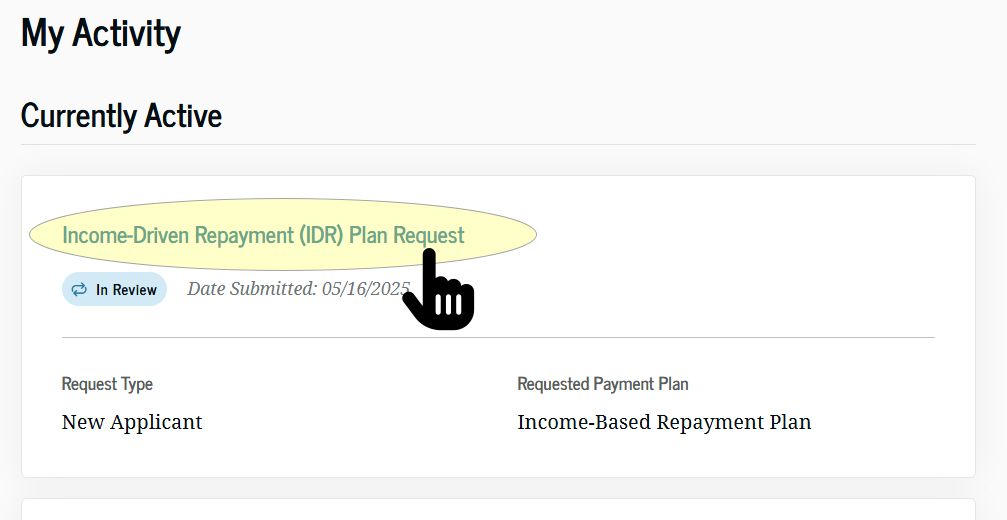
Do this before you open a new IDR application. A fresh submission may change what is visible, push older activity lower in the account history, or make it harder to explain which record came first. The point is not that a screenshot will force the Department or servicer to accept your position. The point is that it creates a dated record of what a federal loan system showed you at the moment you were told to take corrective action.
- Capture the full “My Activity” page, including your browser date and time if visible.
- Open the IDR application detail view, if available, and capture the status, submission date, and any confirmation or tracking information.
- If no application appears, capture the page showing that absence rather than only writing down that you could not find it.
- Save the files with plain names such as “2026-07-31_StudentAid_MyActivity_IDR_status.”
This is where many borrowers lose the best evidence they ever had. They receive a vague correction notice, assume the old record is already invalid, and move straight to the new form. Later, if the servicer treats the earlier application as canceled, never received, or not tied to a prior payment amount, the borrower is left describing a screen that no longer looks the same.
Preserve the Error Notice and the Payment Amount You Relied On
The Department’s instruction to reapply does not erase what happened before the notice. If you received an approved payment amount, made a payment, saw a projected IDR amount, or received a servicer message saying your application was being processed, preserve those records in the same folder as the July notice.
| Record to Save | Why It Matters |
|---|---|
| July 2026 error notice | Shows that the Department told you there was a calculation error and instructed you to reapply. |
| Original IDR confirmation or submission receipt | Shows when you first acted and which channel you used. |
| Prior payment calculation or approval message | Shows the amount you were given before the correction notice. |
| Billing statement or payment history | Shows whether you paid under the amount displayed or approved. |
| StudentAid.gov “My Activity” status | Shows whether the prior application appeared pending, processed, canceled, or absent before the new submission. |
| Income documentation used for reapplication | Shows what information you resubmitted if the corrected application is later questioned. |
For borrowers already making payments, the payment amount is not a side detail. It is the number that shaped budgeting decisions and may later explain why you paid what you paid. If the system later recalculates the account, a dated copy of the prior amount is more useful than a memory of what the dashboard used to show.
Save PDFs where possible. If a page does not offer a PDF download, use screenshots. If an email contains the notice, preserve the email itself rather than only copying the text into a note. Keep the sender, timestamp, subject line, and any embedded links visible.
Then Reapply, But Treat the Online System as Something You Must Verify
StudentAid.gov/idr is the recommended channel for submitting a new IDR application, but it is not helpful to pretend the channel is frictionless. CNBC reported in June 2026 that borrowers were seeing IDR application glitches, including $50 monthly payment estimates appearing for borrowers at different income levels, eligible plans such as PAYE not displaying, and wrongful prompts to consolidate.[4] Forbes reported similar online IDR application problems later that month.[5]
That does not mean you should avoid the online application if the Department has directed you there. It means you should move through it slowly enough to document each material input and output. The same system that accepts the corrected application may later become the only place you can show when the corrected application entered the queue.
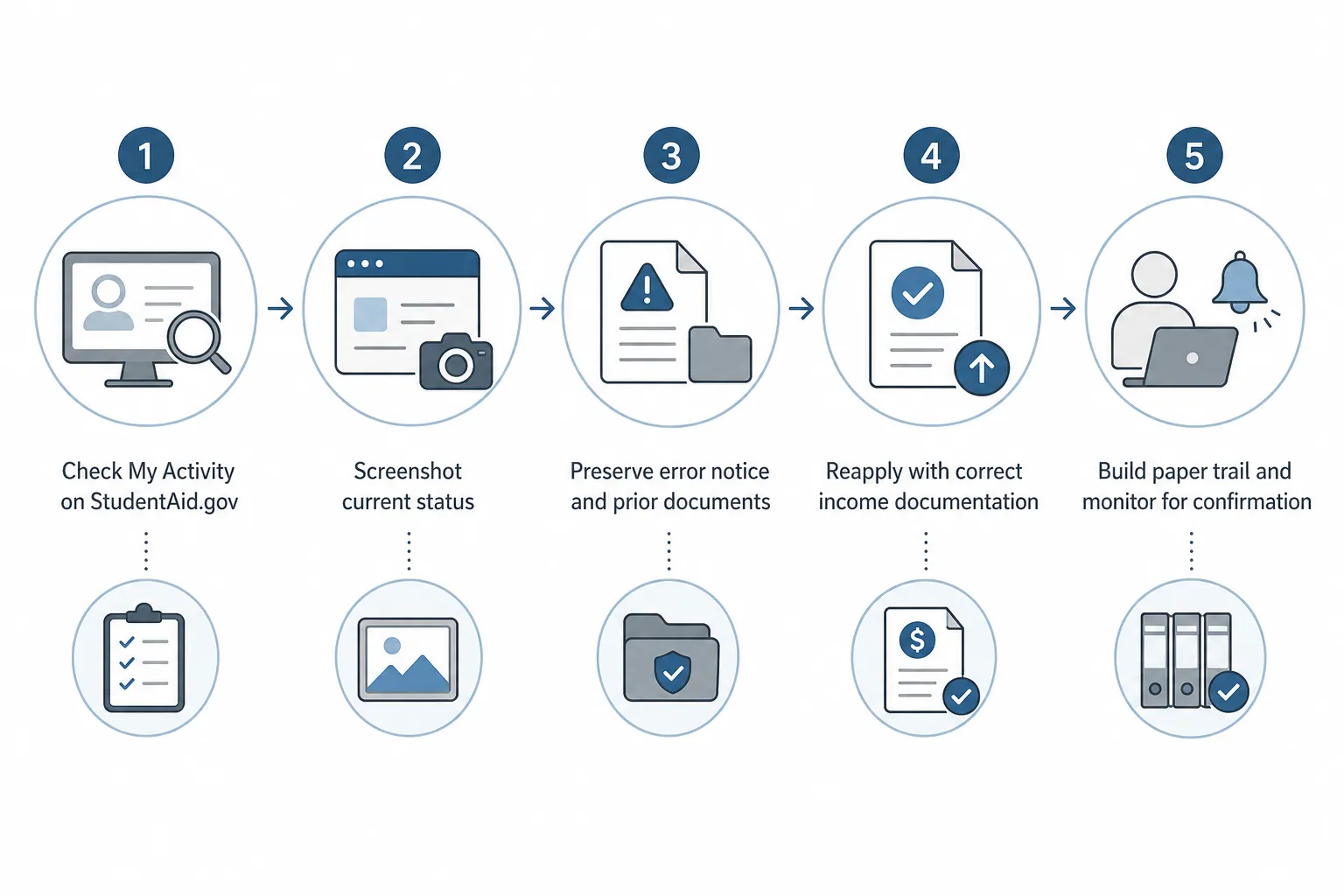
- Use the income information that is accurate for the application you are submitting, and keep a copy of the documentation you relied on.
- Capture the plan options and payment estimates shown before you submit, especially if anything looks inconsistent with your income or family size.
- Do not ignore missing plan options or unexpected consolidation prompts; capture them and pause long enough to compare them with your own loan situation.
- After submission, save the confirmation page, confirmation number, submission date, and any email receipt.
The reapplication itself should be boring: correct identity information, correct income information, correct family size, and a saved confirmation. If any part of the application produces an obviously strange result, your record should show the strange result before you try to fix it.
Check That the New Application Actually Appears
Submitting the new form is not the endpoint. Return to StudentAid.gov “My Activity” and confirm that the corrected IDR application appears. If it does, capture the new status and date. If it does not, capture that too.
The College Investor reported that a court filing referenced 530,000 unprocessed IDR applications, and also cited a March 2026 GAO report describing Education Department workforce cuts of roughly half.[3] Those facts do not prove what happened to any one borrower’s file. They do explain why silence should not be treated as confirmation that everything is moving normally.
| What You See After Reapplying | What to Do Next |
|---|---|
| New IDR application appears as pending | Save the status page and check again on a regular schedule. |
| New IDR application appears as processed | Save the approval or result and compare the payment amount with your servicer account. |
| New IDR application does not appear | Save the empty or unchanged activity page and contact your servicer with the submission confirmation. |
| Old application appears canceled or missing | Save the current view and keep it with your pre-reapplication screenshots. |
| Payment amount changes unexpectedly | Save the old amount, new amount, billing statement, and any explanation provided. |
A pending status is not a final answer, but it is better than an invisible application. An invisible application with no saved confirmation is where a borrower’s position becomes unnecessarily weak.
Watch the Servicer Account Separately
StudentAid.gov and your loan servicer account are related, but they are not the same evidence source. After reapplying, check your servicer dashboard for the payment amount, due date, repayment plan name, billing status, and any administrative forbearance or processing message. Save those screens separately.
This matters most if you had already begun paying under the earlier amount. A corrected IDR application may eventually produce a different monthly payment. The record you need is not just the final number; it is the sequence: what the Department told you, what StudentAid.gov showed, what the servicer billed, what you paid, and when each changed.
- Save the billing statement for the month before the notice, the month of the notice, and the first month after the corrected application is processed.
- Save payment confirmations if you paid the amount previously displayed or approved.
- Save any message from the servicer explaining a changed payment, changed due date, or changed repayment plan.
- If you are pursuing forgiveness, save the payment count or qualifying-payment tracker before and after the reapplication if your account provides one.
Documentation does not guarantee that a disputed month will count toward forgiveness. It does put you in a stronger position if you later have to show that you followed the Department’s instruction and that the account changed in a way you could not verify from the notice alone.
Build One Timeline Instead of a Folder Full of Fragments
A folder of screenshots is useful. A timeline makes it usable. Create a simple document or spreadsheet that lists each date, what happened, where it happened, and which file proves it.
| Date | Event | Where It Appeared | Saved Proof |
|---|---|---|---|
| Use actual date | Original IDR application submitted | StudentAid.gov or servicer | Confirmation page or email |
| Use actual date | Payment amount displayed or approved | StudentAid.gov or servicer | Screenshot or PDF |
| Use actual date | July 2026 error notice received | Email or account inbox | Full notice with timestamp |
| Use actual date | Original application status checked | StudentAid.gov “My Activity” | Status screenshot |
| Use actual date | Corrected IDR application submitted | StudentAid.gov/idr | Confirmation page and email |
| Use actual date | New application status checked | StudentAid.gov “My Activity” | Status screenshot |
| Use actual date | Servicer payment amount checked | Servicer dashboard | Billing screenshot or statement |
Do not overwrite old screenshots with new ones. If the page changes, save a new file. The difference between “pending on July 31” and “not visible on August 12” may become the entire point of a later dispute.
What to Include in a Servicer Message
If your corrected application does not appear, your payment amount changes without explanation, or your servicer account does not match StudentAid.gov, contact the servicer in writing when possible. Keep the message factual and short.
I received the July 2026 Education Department notice stating that my IDR payment calculation was incorrect and that I must reapply. I checked StudentAid.gov “My Activity” on [date], and it showed [status]. I submitted a corrected IDR application on [date] and received confirmation [number, if available]. My servicer account currently shows [payment amount/status]. Please confirm whether my corrected IDR application has been received and how my payment amount and qualifying-payment progress will be handled while it is processed.Attach or reference only the records needed for the specific mismatch. A focused message is easier to review than a long narrative with every frustration included. Keep a copy of the submitted message, any case number, and the response.
Escalate When the Record Shows a Mismatch or Silence
Escalation should not be the first move, but borrowers should not wait indefinitely when the record shows a problem. A dispute is easier to frame when you can point to a specific mismatch: the corrected application was submitted but never appeared, the servicer billed a different amount without explanation, the account treated a prior application as canceled after you were told to reapply, or a forgiveness tracker changed after the correction.
Tateesq’s student loan dispute guide describes using written disputes to challenge balance, payment, and forgiveness-related errors, and its ombudsman guide explains that borrowers can escalate unresolved servicer problems to the Federal Student Aid Ombudsman Group.[6][7] Those routes still depend on the borrower being able to describe what is wrong and provide supporting records.
- Escalate if the corrected IDR application does not appear after you have a submission confirmation and a reasonable follow-up record.
- Escalate if StudentAid.gov and the servicer show conflicting statuses that affect billing or repayment-plan placement.
- Escalate if a payment amount changes and neither the Department nor the servicer provides a usable explanation.
- Escalate if a forgiveness or qualifying-payment count changes after the reapplication and the servicer cannot reconcile the count.
For borrowers in SAVE or moving out of SAVE, plan availability and forgiveness timing can be especially sensitive. The National Consumer Law Center’s Student Loan Borrower Assistance project warned in April 2026 that borrowers affected by SAVE’s end needed to pay close attention to plan transitions and repayment consequences.[8] If you are in that group, preserve plan-name screenshots as carefully as payment-amount screenshots.
What You Should Have After Reapplying
By the time you finish these steps, you should be able to open one folder and answer the questions the Department’s notice did not answer for you.
- What notice did you receive, and when did you receive it?
- What did StudentAid.gov show for the original IDR application before you reapplied?
- What payment amount had been displayed, approved, billed, or paid before the correction?
- What income information did you use for the corrected application?
- When did you submit the corrected application, and what confirmation did you receive?
- What still does not match between StudentAid.gov, the servicer account, and your payment or forgiveness records?
That is the defensible position. It does not mean the Department’s calculation error is fixed. It means you have a dated record of what you were told, what the system showed, what you submitted, and what remains unresolved.
References
- Student Loan Borrowers Must Reapply For Repayment Plans After Errors, Forbes, July 28, 2026
- Student-loan borrowers got wrong payment amounts and must resubmit applications, Education Department says, Business Insider, July 27, 2026
- Department of Education Tells IDR Applicants To Reapply After Payment Error, The College Investor, July 2026
- Student loan borrowers face glitches as they apply for repayment plans, CNBC, June 16, 2026
- Student Loan Borrowers Face Major Glitches As New Repayment Application Launches, Forbes, June 22, 2026
- How to Dispute Student Loan Balances and Forgiveness Errors, Tateesq, updated July 17, 2026
- Student Loan Ombudsman: How to Get Help With Complaints, Tateesq, updated July 17, 2026
- The SAVE Plan Is Ending: What Borrowers in SAVE Need to Know, NCLC Student Loan Borrower Assistance, April 2026
Grounded in
This procedure is grounded in the cited rule or opinion, independent of any single documented case. See the Regulation tracker for the governing text.
Cases this step would have prevented
No cases have been explicitly linked to this checklist yet. See Risk Digest for documented incidents generally.
← Back to WorkflowsReport a correction or tip
Spotted an outdated figure, a misstated fact, or a ruling this workflow checklist should reflect? Public comments are disabled for this content given the professional cost of a misreported case outcome, penalty amount, or rule text — use the structured correction channel instead.
Report a correction or tip for this record →